Articles in this section

How to Create Group Testing

If you want to test a group of patients or athletes, you can now easily do so by testing each of them one after another. Their results will be automatically saved in your history.


Group Testing Example

How to Proceed

  1. From the home page, click on “My Favorites”.
  2. Select an existing activity or create a new one by following the tutorial.
  3. Click on “Start Activity”.
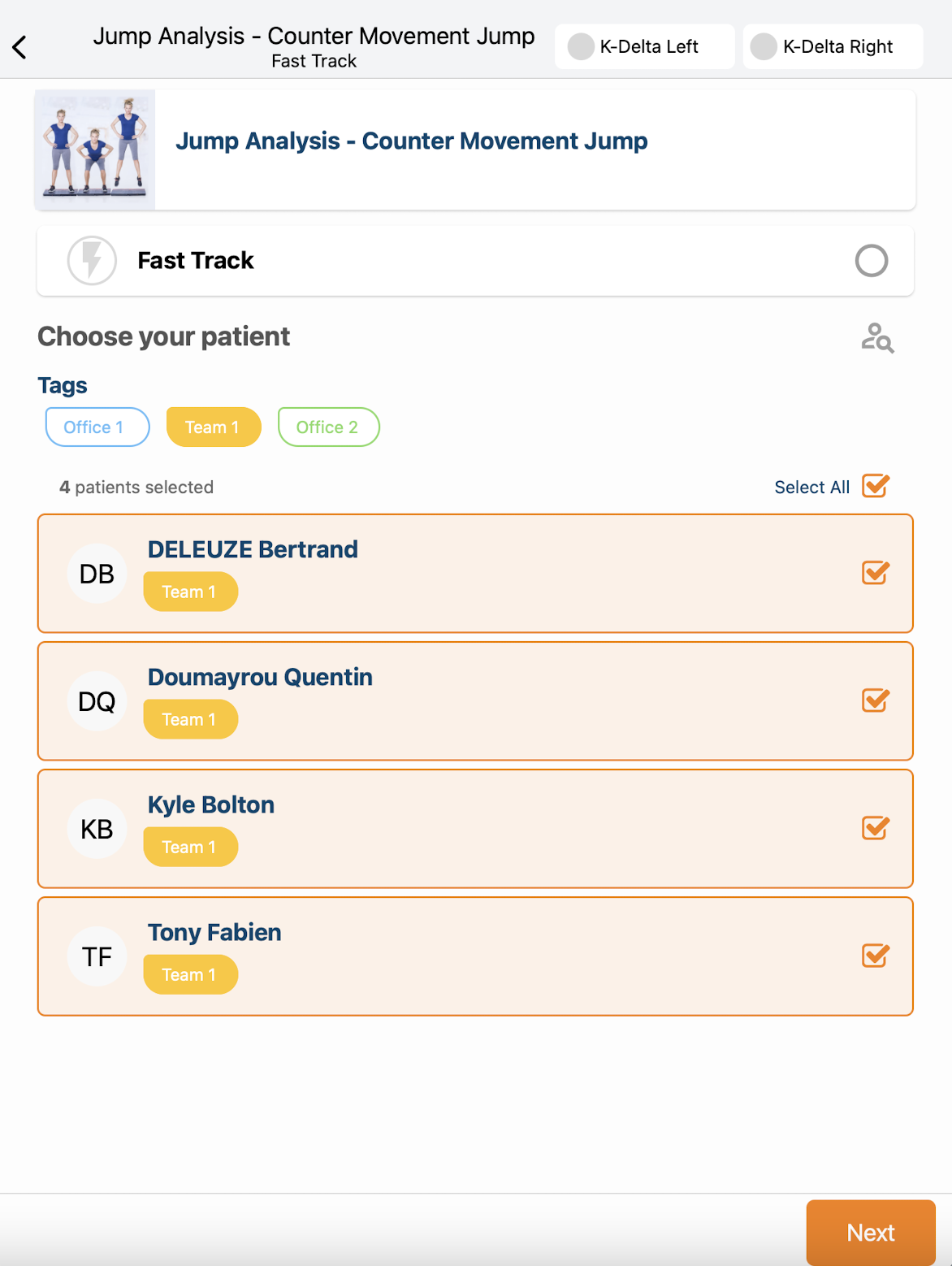
  4. Select the patients you want to test.
  5. You can use labels to classify your patients.
  6. Click on “Next”.
  7. You can modify the order of execution if needed.
  8. Click on “Next” again.
  9. Set up your activity parameters.
  10. Start group testing.


Tips


  • The patients will be tested sequentially, following the order defined in step 7.
  • Between each patient, you will be able to view their individual results.
  • At the end of the session, all reports will be available in each patient’s information section.


Tutorial Video